因为工作中和服务器没有前端页面,为了下载开源工具方便,docker拉取方便,采用如下方案。
Ubuntu上v2rayA 安装与使用
安装与配置过程分为以下几个步骤:
- 首先安装 v2ray 内核
- 然后安装 v2rayA(客户端),
- 配置 v2rayA
- 配置以及连接机场节点。
安装 v2ray-core 内核
(windows 系统可跳过此步骤)
因为 Windows v2rayA Installer 自带了 v2ray 内核,对于 Windows 系统可以跳过内核安装这一步骤。
对于 Linux 和 macOS 操作系统则仍然需要先安装 v2ray-core 内核
Linux 上下载并安装 v2ray 内核(Debian 和 Redhat 系列 linux 通用)
1
2
3
4
5
6
7
8
9
10
11
12
13
14
15
|
$ wget -O /tmp/v2ray-linux-64.zip https://ghfast.top/https://github.com/v2fly/v2ray-core/releases/download/v5.24.0/v2ray-linux-64.zip
$ openssl dgst -SHA2-256 /tmp/v2ray-linux-64.zip
SHA2-256(/tmp/v2ray-linux-64.zip)= 2556dd39ac7c8dbc9de0fa2a539539e82ac864096d5eaa4191d97c22e1ee9a89
sudo unzip /tmp/v2ray-linux-64.zip -d /usr/local/v2ray-core
sudo mkdir -p /usr/local/share/v2ray/
sudo cp /usr/local/v2ray-core/*dat /usr/local/share/v2ray/
|
安装 v2rayA
一、对于 debian 系列发行版(Ubuntu, Mint, MX, Kubuntu, Zorin 等等)
1
2
3
4
5
6
7
8
9
10
11
|
wget -O /tmp/installer_debian_x64_2.2.6.3.deb https://ghfast.top/https://github.com/v2rayA/v2rayA/releases/download/v2.2.6.3/installer_debian_x64_2.2.6.3.deb
$ openssl dgst -SHA2-256 /tmp/installer_debian_x64_2.2.6.3.deb
SHA2-256(/tmp/installer_debian_x64_2.2.6.3.deb)= 51bf5501198397adb5f43b0d396893bfb544acc7a9eba08f9e07c19cd606cd0c
sudo apt install /tmp/installer_debian_x64_2.2.6.3.deb
|
二、对于 Redhat 系列发行版(Centos, Fedora, AlmaLinux, Rocky Linux 等)
1
2
3
4
5
6
7
8
9
10
11
12
|
wget -O /tmp/installer_redhat_x64_2.2.6.3.rpm https://ghfast.top/https://github.com/v2rayA/v2rayA/releases/download/v2.2.6.3/installer_redhat_x64_2.2.6.3.rpm
$ openssl dgst -SHA2-256 /tmp/installer_redhat_x64_2.2.6.3.rpm
SHA2-256(/tmp/installer_redhat_x64_2.2.6.3.rpm)= f07c95760b9f63a50dbabf0e6d39f3b7572377d0a8d2716d0f0b63b922328c49
sudo rpm -i /tmp/installer_redhat_x64_2.2.6.3.rpm
|
配置 v2rayA
(windows 可跳过此步骤)
因为在 Windows 上,安装程序默认设置了 v2rayA 与内核的关联,所以可以跳过以下配置过程
Linux上则需要修改/etc/default/v2raya配置文件让 v2rayA 使用 v2ray-core。
1
2
3
4
5
6
7
8
9
10
11
12
13
14
15
|
sudo vim /etc/default/v2raya
V2RAYA_V2RAY_BIN=/usr/local/v2ray-core/v2ray
V2RAYA_V2RAY_CONFDIR=/usr/local/v2ray-core
sudo sysctl -w net.ipv6.conf.lo.disable_ipv6=0
sudo vi /etc/sysctl.conf
net.ipv6.conf.lo.disable_ipv6 = 0
|
Linux 操作系统上设置 V2rayA 开机自启
1
2
3
4
5
|
sudo systemctl enable --now v2raya
systemctl status v2raya
|
登陆 v2rayA web 管理界面
在局域网其他机器浏览器中打开 v2rayA web 管理界面 http://服务器IP:2017/
- 创建管理账号(如果遗忘,可以使用
sudo v2raya --reset-password 命令重置密码, 重置前先停止 v2raya)
- 导入订阅 url 或 节点 url
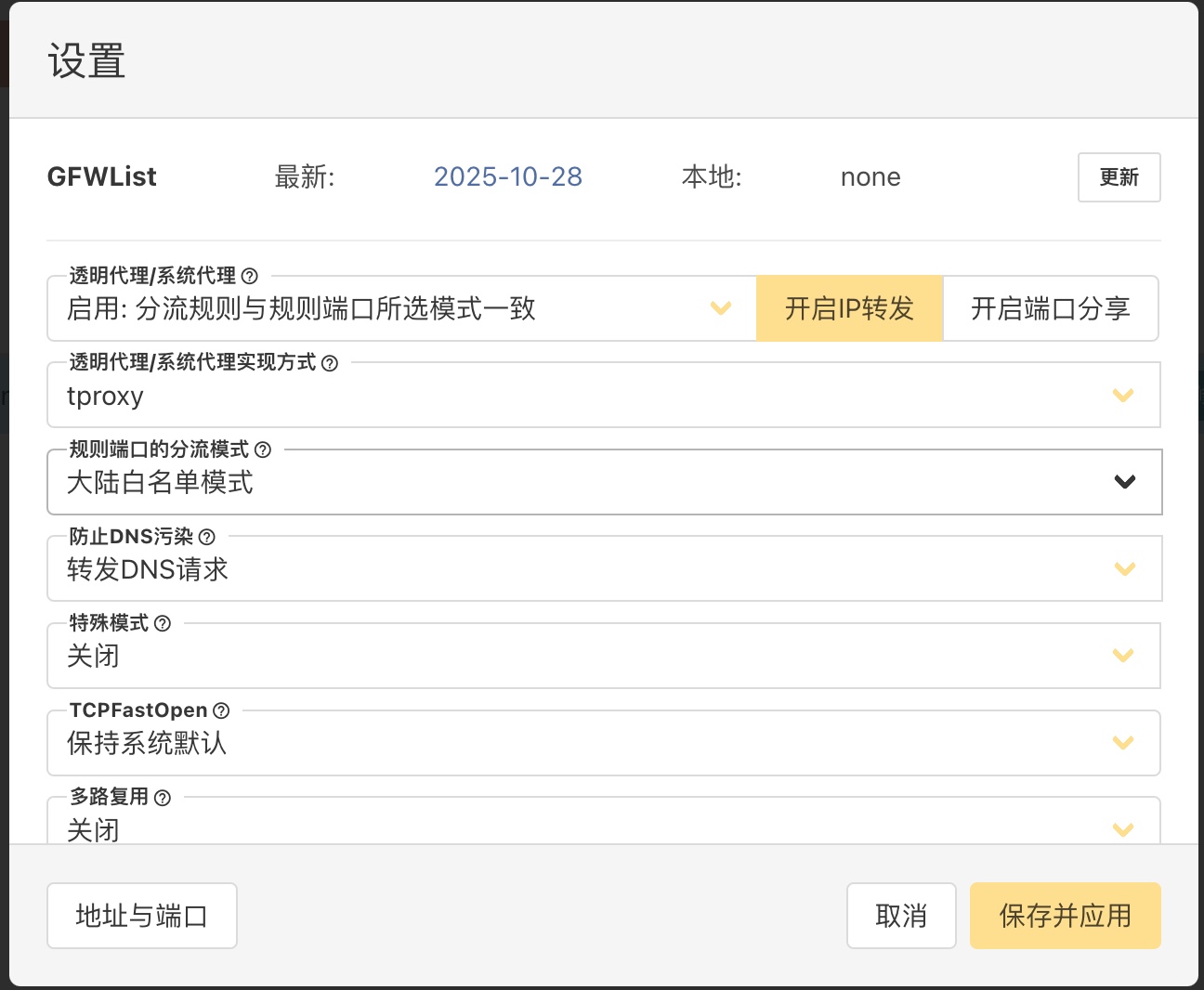
使用
1
2
3
4
5
6
7
8
9
10
11
12
13
14
15
| 技巧与提示:
步骤 1,勾选一个或多个节点,此时界面上会出现 Ping 和 HTTP 按钮,点击相应按钮测试服务器 ping 值,以及 http 延时,以便快速找到可用节点。
步骤 2, 选择节点,在每个节点右侧有一个选择按钮,点击选择按钮选中节点,此时节点呈现柚红色,因为还未启动它们。
步骤 3,在页面左上角有个“就绪”按钮点击该按钮启动节点,节点呈现蓝色表示启动成功。
如果未呈现蓝色即未启动成功,请点击页面右上角点击日志查看问题详情。
有时会因为缓存原因,设置修改后不会立即生效,这时可以重启一下网卡,或者重启一下 v2rayA 服务。
sudo systemctl status systemd-networkd
sudo systemctl restart systemd-networkd
sudo systemctl status v2raya
sudo systemctl restart v2raya
|
检验是否成功科学上网
1
2
| curl ipinfo.io
curl https://www.google.com
|
参考来源
https://pengtech.net/network/v2rayA_install.html#2-%E5%AE%89%E8%A3%85-v2rayA